
WordPress Plugin
Browse all screencasts, in-depth tutorials, and guides published under the WordPress Plugin category.
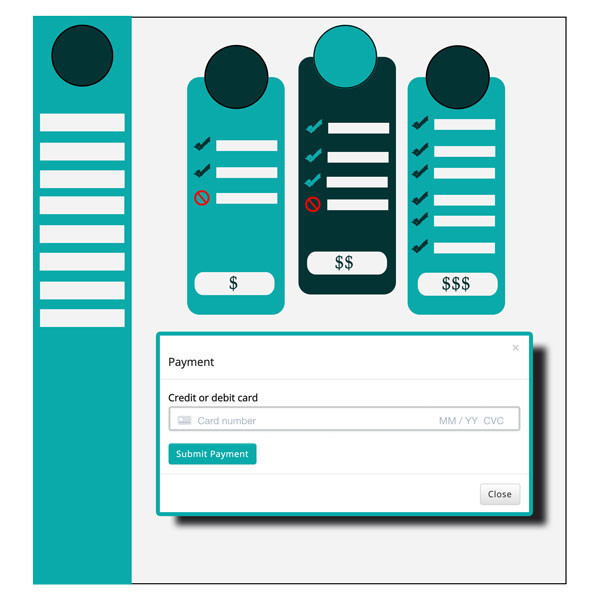
How to setup Frontend Dashboard Payment Pro
Visit https://stripe.com/ and Signin using your credentials
 Click Developers in Left Menu
 Click API Keys
 Select the View Test Data for Testing Keys and unselect for Live Keys
 Copy Publishable key and Secret key Paste it in Wp-admin | Frontend Dashboard | Payments | Payment Gateway | Stripe | Sandbox Publishable key and Sandbox Secret key for Sandbox and Live Publishable key and Live Secret key for Live keyClick Submit
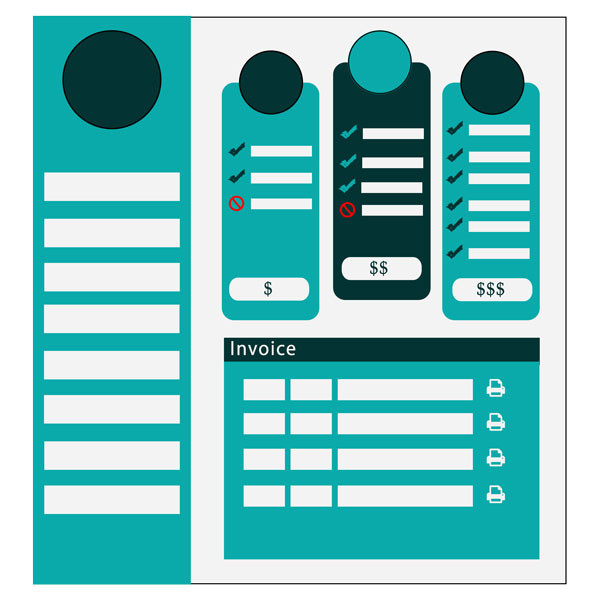
How to setup Frontend Dashboard Membership Pro
Go to Frontend Dashboard | Membership Pro | Membership
 Add New Membership Plan
 Fill the plan with respective values
 Go to Template and select the respective template to show and Click Submit
 Then Edit the Template and make your own style by selecting the colors Click Submit
 Go to Settings | Shortcodes | select the Shortcode fed_payment_pro_popup for popup in Membership plan
 Go to Settings | Setting and enter the total number of plan to show in a single row.