
Frontend Dashboard
Frontend Dashboard is bundled with the huge list of custom features like, custom login, custom registration, custom profile, custom page and taxonomies along with custom user role to manage and restrict
License Checkout
Frontend Dashboard
About Frontend Dashboard
Frontend Dashboard is bundled with the huge list of custom features like, custom login, custom registration, custom profile, custom page and taxonomies along with custom user role to manage and restrict
Key Features & Architecture
Discover what makes Frontend Dashboard unique, reliable, and developer-friendly.
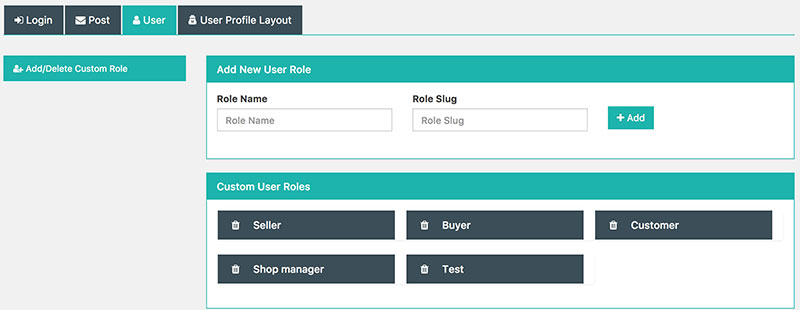
Custom User role
Easy to create and delete custom roles with basic role assigned
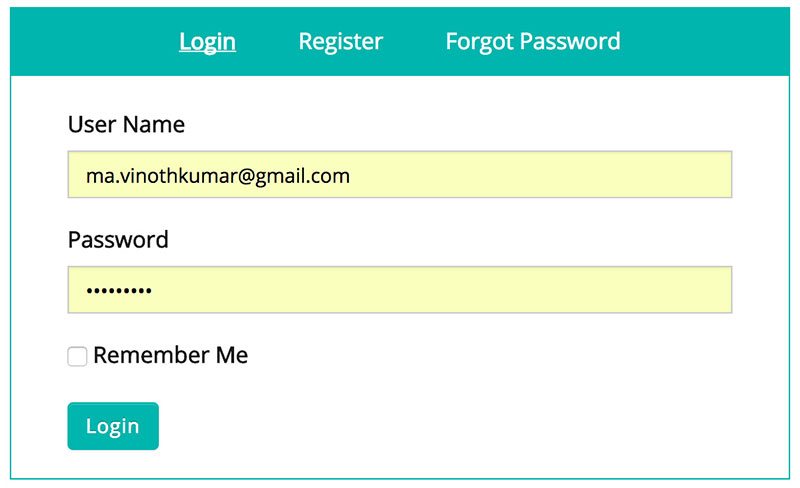
Custom Login, Register and Forgot Password
Easy to create custom Login, Register and Forgot Password pages
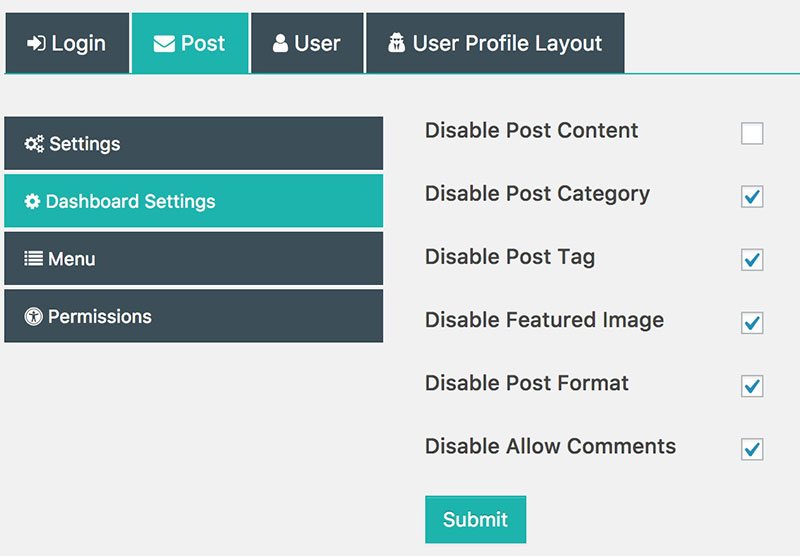
Manage Posts
Define the users to access the post attributes to access the frontend dashboard
Custom User Profiles
Easily create as many custom form fields and restrict it based on the user role
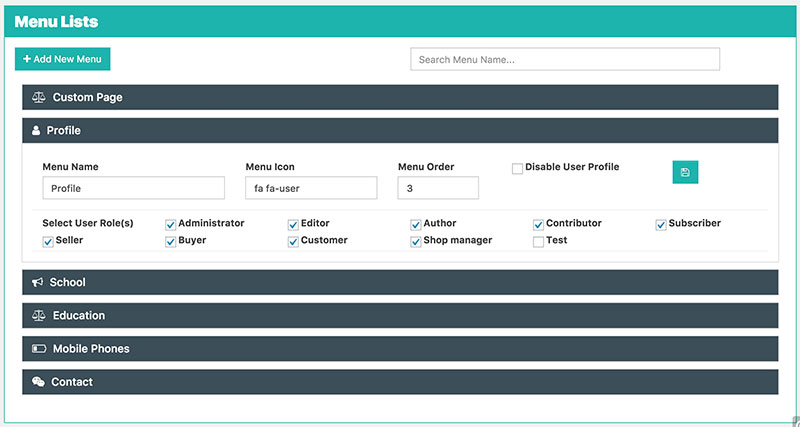
Dashboard Menus
Categories the frontend dashboard with menu and make the user access friendly
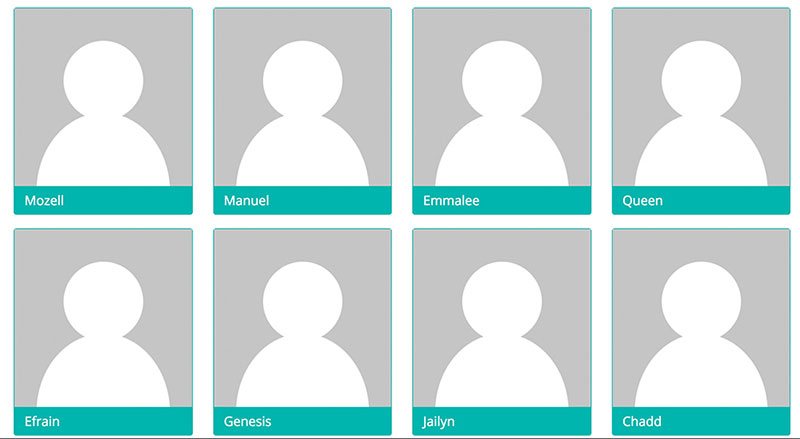
User Profile Page
Create the pages to all user roles, based on their roles with custom user profile single page
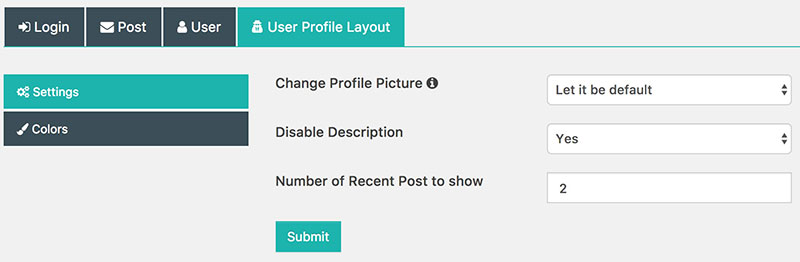
Customise Profile Page
Restrict the number of post to show in the custom profile page
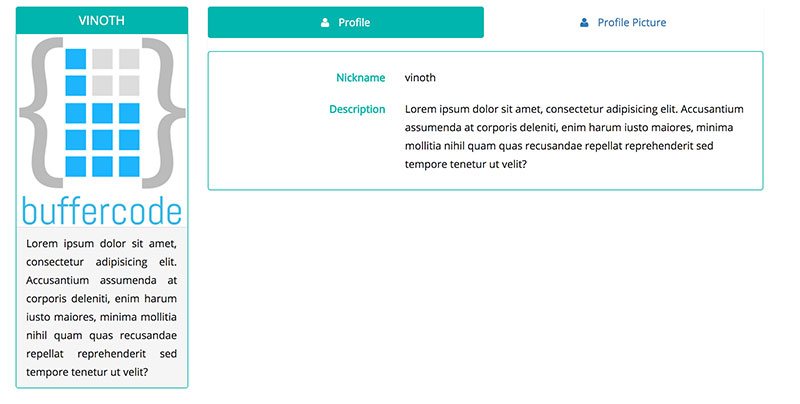
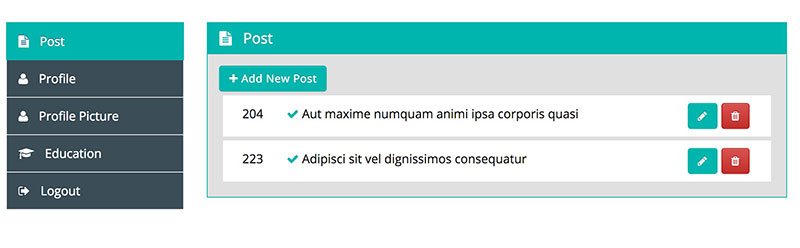
User Dashboard
Frontend Dashboard to manage all user and custom post fields
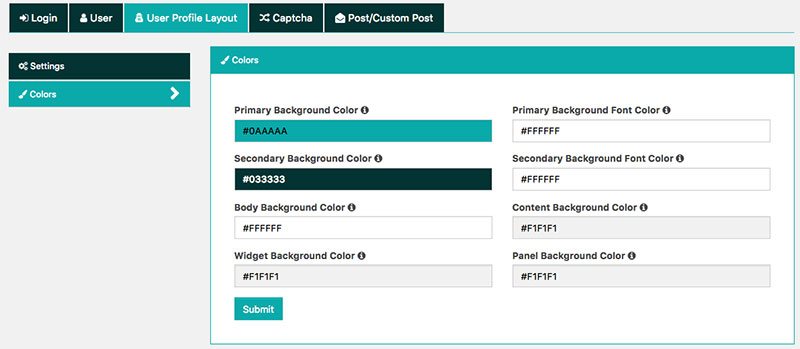
Customise Layout Colors
Easy customise of Layout background and font colours
Plugin Screenshots & UI Preview
Click any screenshot below to inspect the interface and configuration settings in full resolution.
Dashboard Menu
Input Fields
Login Settings
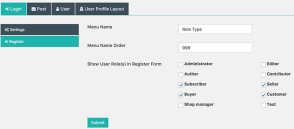
Register Settings
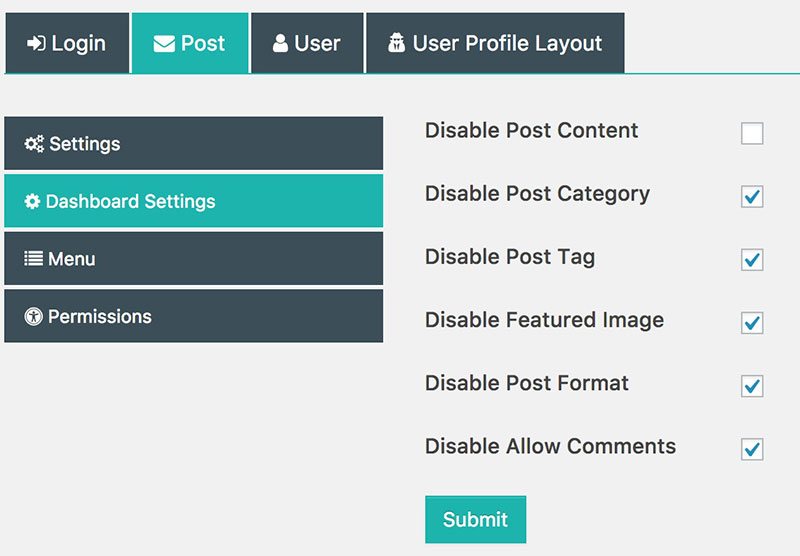
Post Dashboard Settings
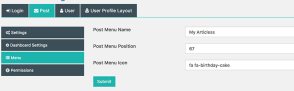
Post Menu
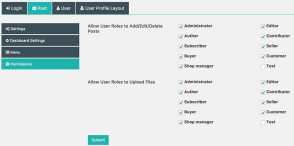
Post Permission
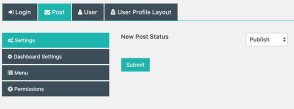
Post Settings
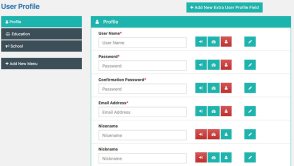
User Profile List View
User Dashboard
Changelog & Release Notes
Detailed history of improvements, bug fixes, and feature additions.
* Bug fixes
* Bug Fixes
* Feature: Sort all menu in Dashboard Menu.
* Feature: Delete and Empty the table associated with Frontend Dashboard in Status Menu
* Bug fixes: Deleting the menu is not deleting the associated items.
* Some minor bug fixes.
* Few bug fixes.
* Bug fixes: Admin User Profile Menu not sorting in order
* Bug fixes: Frontend Dashboard menu not sorting in order
* New: Drag and Drop to sort the menu items in Dashboard Menu, User Profile and Post Fields
* Bug: Minor bug fixes
* Bug: fixed and enhanced supportive plugins.
* Added Login link for Register page
* Bug: WP Admin area restriction block ajax request.
* Enhanced: Frontend Dashboard for mobile view.
* Enhanced: Code refactored
* Enhanced: Admin Dashboard settings changed
* Bug: Disabled menu slug on edit
* Bug: Post page custom fields alignment fixed
* New: Post content can be disabled
* Bug: While Login and Register loading icon missing
* Bug: Email not sending to new register
* Bug: Input type number can't able to add more than 6 six digits
* Enhanced: Dashboard Settings
* Enhanced: Dashboard Main Menu
* Enhanced: Add-Ons
* Login failed and more bug fixes
* Bug fixes
* Added new filter and action hooks
* Bug fixes
* Added new filter and action hooks
* Bug fixes
* Added few filters.
* Bug fixes
* Refactored for developers comfort
* Minor: Bug fixed
Frequently Asked Questions
Everything you need to know about Frontend Dashboard installation, licensing, and usage.
2. Go to the plugins setting page and activate “Frontend Dashboard”
3. Go to Frontend Dashboard | Frontend Dashboard | Check for your settings
4. Do save.
2. Give appropriate title
3. Add shortcode in content area [fed_login]
4. Change Page Attributes Template to FED Login [In Right Column]
5. Publish the page.
2. Give appropriate title [As we are creating for Login Page]
3. Add shortcode in content area [fed_login_only]
4. Change Page Attributes Template to FED Login [In Right Column]
5. For Register and Forgot Password, create the pages similar to above-mentioned instruction and add the shortcode for Register [fed_register_only] and for Forgot password [fed_forgot_password_only]
6. Publish the page.
2. Give appropriate title
3. Add shortcode in content area [fed_dashboard]
4. Change Page Attributes Template to FED Login [In Right Column]
5. Publish the page.
Then Please go to Frontend Dashboard | Frontend Dashboard | Login (Tab) | Settings (Tab) | Please change the appropriate pages for the settings.
2. Click Add New Menu
3. Fill the input as per your requirement and select the appropriate user roles to view the menu.
4. Click Add New Menu
2. Click Add New Extra User Profile Field
3. Select the required input type from the drop-down ‘Add New Profile Field’
4. Fill the input fields and submit to save
2. Select the Show User Role(s) in Register Form user roles to be shown on the registration form.
3. Click submit.
4. Now you can able to see the selected user role on the Registration page.
2. Customise the Primary and Secondary Background color
3. Customise the Primary and Secondary Font color.
4. Save the settings.
* Navigate to Frontend Dashboard | Frontend Dashboard | Post | Settings
* Change the new post status to either pending or publish
2. Disables options
* Navigate to Frontend Dashboard | Frontend Dashboard | Post | Dashboard Settings
* Check the appropriate options to disable the post options in Frontend Dashboard
3. Customise menu title and icons
* Navigate to Frontend Dashboard | Frontend Dashboard | Post | Menu
* Change the Menu name, menu position and Icon.
4. Post and image permission
* Navigate to Frontend Dashboard | Frontend Dashboard | Post | Permissions
* Select the user roles to enable to post and unselect the user roles to disable to post in frontend dashboard
* Similarly for Allow User Roles to Upload Files.